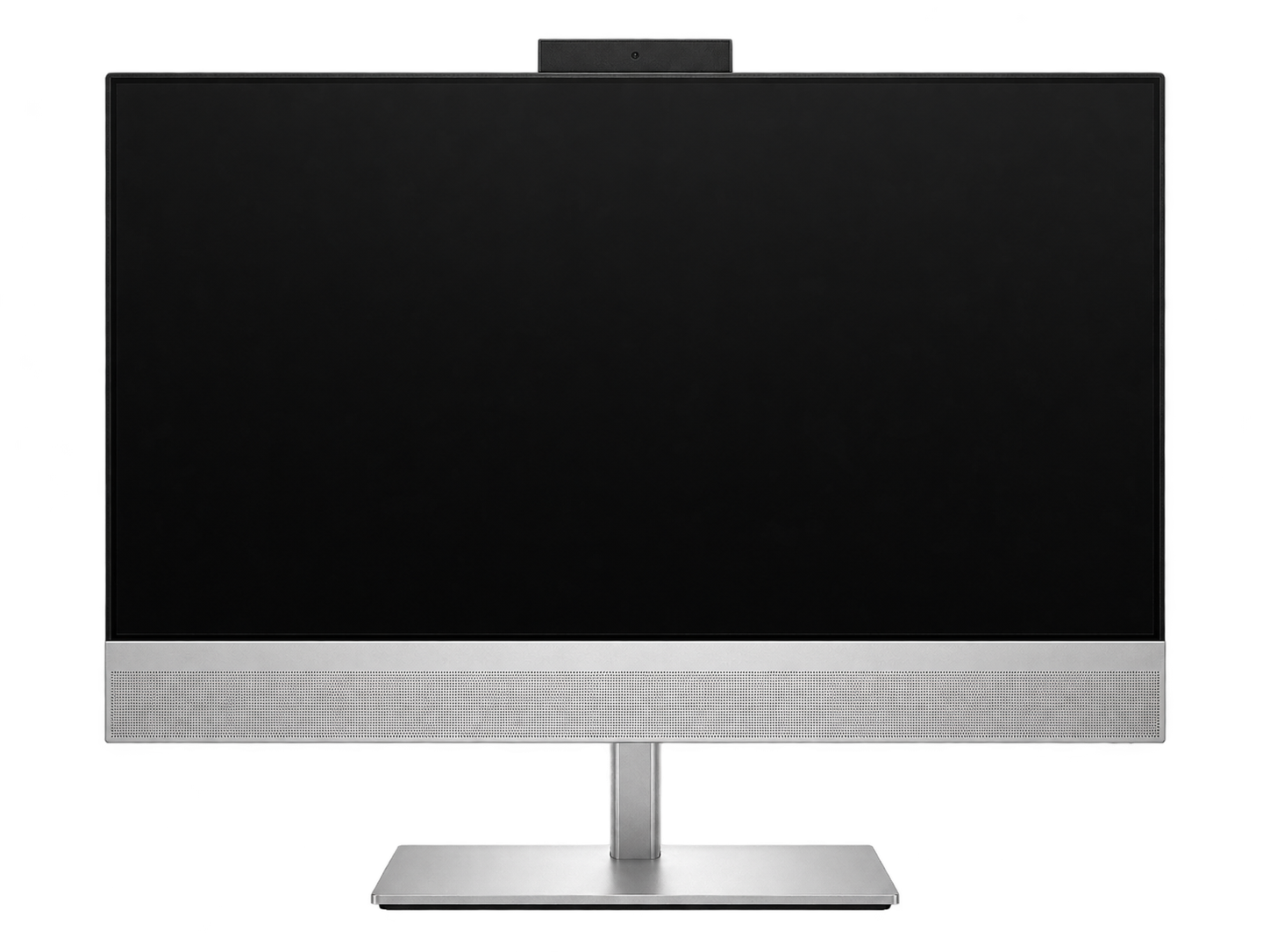
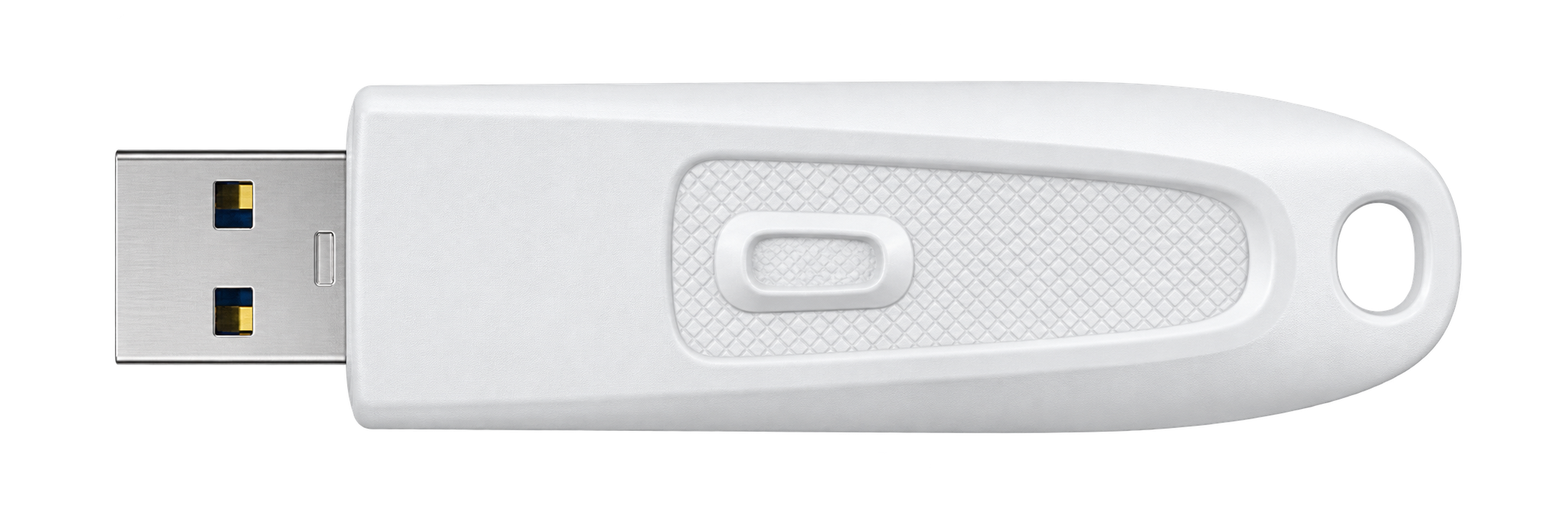
Plug in. Backup starts.
Your paired drive starts the backup automatically.
AUTOMATIC USB BACKUP FOR WINDOWS
Back up documents, photos, and work folders to USB.
No app to open. No copy button to click.
Enable automatic backup and Start with Windows once, so VaultTail is ready when you connect your drive.
One plug. Backup underway.
A quick look at the workflow. Copying time is shortened.Your paired drive starts the backup automatically.

Keep working while VaultTail copies in the background.

Other USB drives are left alone.

New and changed files are copied. Unchanged files are skipped.
LESS TO DO. EVERY TIME.
The same routine, every time.
Next backup? Repeat these steps.
After choosing your folders and pairing a drive once.
It checks your folders and copies only new or changed files in the background.
TRY THE SETUP
Choose example folders and a drive to see how it works.
 VaultTail Interactive demo
Select folders with important files.
Your originals will not be moved or changed.
Next step — choose a USB drive.
Choose the example folders to begin.
VaultTail backs up to the drive you paired. Other USB drives are ignored.
Your selected folders are copied in the background.
Try it: select a different drive above.
 File Explorer− □ ×PhotosDocumentsProjects
WHEN YOU NEED YOUR FILES
Open VaultTail Backup on your USB drive in File Explorer. Your photos, documents, and projects are ready to browse.
14-DAY FREE TRIAL
Start with a folder you know. Run a backup, then open the copies on your USB drive and see the result for yourself.
Available on Microsoft Store for Windows.
Your local price is shown before you buy.
USB BACKUP, EXPLAINED
Setup, automatic copying, opening your backups, and what to check when something needs attention.
VaultTail is an automatic USB backup app for Windows. Choose the local folders you want to copy and pair a USB drive. With automatic backup enabled and VaultTail running in the background, connecting that drive starts a backup.
Install VaultTail from Microsoft Store, choose your folders, and select your backup drive. Enable automatic backup and Start with Windows. After setup, connect the paired drive to start copying in the background. Check the completion status before removing the drive.
VaultTail supports Windows 10 version 2004 (build 19041) or later, including Windows 11, and external USB drives recognized by Windows. Check the current Microsoft Store listing for the full system requirements and compatibility with your PC.
Yes. Select the local folders containing the files you want to copy. Make sure those files are available on your PC and the backup drive has enough free space. Files that exist only online need to be downloaded first.
No VaultTail account or cloud storage is needed for the local backup workflow. Copies are stored on your paired USB drive. Installation, licensing, and purchases are handled by Microsoft Store.
No. Enable Start with Windows and leave automatic backup turned on so VaultTail is ready in the background. Closing the main window lets it keep working. If you fully exit VaultTail, open it again before expecting an automatic backup.
No. VaultTail uses the drive you paired for backup and ignores other USB drives. You can change the selected backup drive in the app.
VaultTail checks your selected folders and copies new or changed files. Unchanged files are skipped, so later backups may have less to copy. Copying time depends on your files and the speed of your PC and USB drive.
No. VaultTail copies your selected folders to the paired USB drive. Your original files stay in their original locations, unchanged.
Your PC needs to be awake, the drive connected, and VaultTail running to copy files. After waking or restarting your PC, check the backup status before assuming that the latest files have been copied.
Check that you connected the paired drive, automatic backup is enabled, and VaultTail is running in the background. Confirm that your source folders are available and the USB drive has free space. Review the status shown in the app; contact support if the problem continues.
Open your USB drive in File Explorer, then open VaultTail Backup. The copies are ordinary files, so you can browse them or copy them to a folder on your PC without a special restore tool. Restore to a new folder first if you want to avoid replacing files already on your computer.
Review the completion status and any warnings in VaultTail. Open VaultTail Backup on your USB drive and check a few important files. A connected drive alone does not mean that every file finished copying.
Copying pauses. Reconnect the same drive and VaultTail can resume from its saved progress. Check the final status and any warnings afterward. Wait for copying to finish and safely eject the drive when possible.
Check the available space and the backup status in VaultTail. Free up space carefully or select a larger backup drive, then run the backup again and confirm completion. Do not treat a backup as complete while files are still waiting to be copied.
Make the source folder or file available again before backing it up. For example, reconnect a source drive or download an online-only file. Check VaultTail for warnings and confirm that the files you need are present in the completed backup.
A USB copy is useful if the original is lost or damaged, but the USB drive itself can fail or be lost. Keep another independent copy of irreplaceable files and disconnect the backup drive after a completed backup when practical. VaultTail copies selected folders; do not treat it as a complete Windows system image.
The copy already on your USB drive stays there. Deleting a file from your computer does not automatically delete its backup copy during the next backup.
No. On the next backup, an updated file overwrites the previous copy on your USB drive. Older versions are not saved, so VaultTail cannot restore a version that has been overwritten.
Get VaultTail from Microsoft Store and try it with your own folders and USB drive for 14 days. Start with a small test folder, run a backup, and open the copied files to check the workflow before buying.
VaultTail is a one-time purchase with no subscription. Microsoft Store shows the current price in your region, any applicable offer, and the purchase terms before you buy.
No. Completed backups are ordinary files on your USB drive. You can open and copy them with File Explorer and the usual apps for those file types.
Email [email protected] with your VaultTail version, Windows version, and the status or error message you see. Describe what happened and what you expected. Please do not send private files or passwords.
VaultTail copies the folders you choose to your paired USB drive. The originals stay unchanged, and the copies open as ordinary files in File Explorer.
Read the app’s privacy policyQuestions about setup or a suggestion for VaultTail? Get in touch.